How to Photograph the Northern Lights With a Phone — Settings That Work
A Rovaniemi couple who shoots the aurora every winter shares the exact phone settings, apps, and techniques that turn a faint green smear into a photo worth keeping.
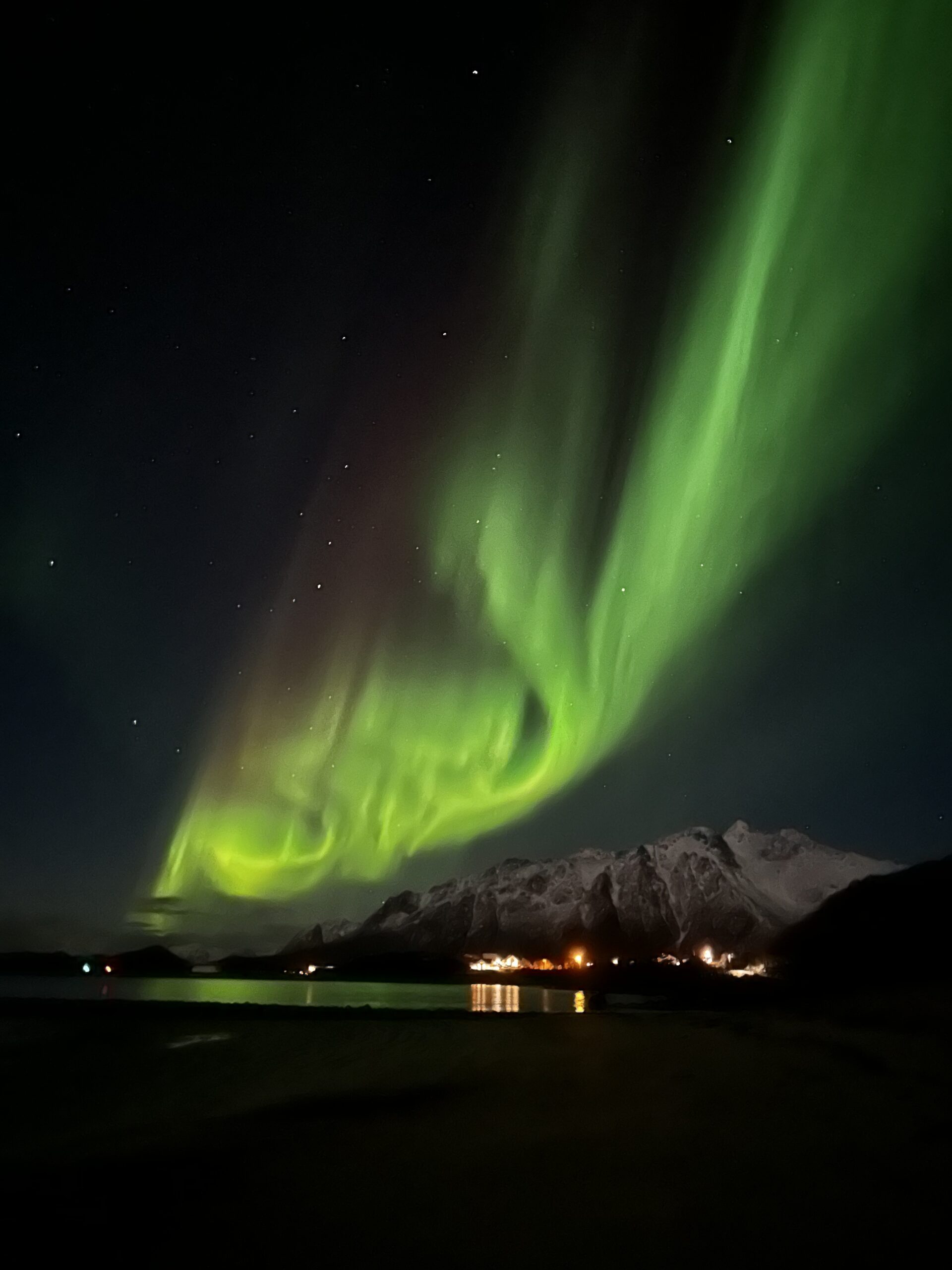
We live in Rovaniemi, right on the Arctic Circle, and between October and March the northern lights show up more nights than they don’t. Over the last three winters we’ve tested every phone trick, night-mode hack, and cheap accessory we could find — because not everyone travels with a mirrorless camera and a carbon-fibre tripod.
This guide is the result: the exact settings and workflow we now use to photograph the northern lights with a phone, from iPhones and Pixels to Samsung Galaxy devices. No expensive gear required.
Use Night Mode (iPhone) or Astrophotography Mode (Pixel) with a 10–30 second exposure, set ISO to 800–1600, and stabilize on a mini tripod or flat surface. Tap to focus on a distant point first, then let the phone do the rest. A €15 phone tripod and cold-weather battery pack are the only accessories you need.
Why modern phones can actually capture the aurora
Five years ago, phone aurora photography was mostly a lost cause. You’d get a black frame or a blurry green smudge. That changed when Apple, Google, and Samsung introduced computational night photography — modes that stack multiple long exposures and align them pixel by pixel.
What changed in phone cameras
The key shift wasn’t megapixels — it was sensor size and software. The iPhone 15 Pro and newer have a 48MP main sensor with larger pixels that gather more light. Google Pixel phones introduced Astrophotography Mode back in 2019 and have refined it every year since. Samsung’s Expert RAW app now lets you manually control ISO, shutter speed, and focus in a way that was impossible even two generations ago.
What a phone can and can’t do
- Can: capture vivid green, pink, and purple aurora bands that look better than what your eyes see (phones pick up more colour than our retinas at night).
- Can: produce photos good enough for Instagram, blog posts, or framed prints up to A4 size.
- Can’t: capture fast-moving corona bursts without blur — those need a DSLR with a bright wide-angle lens and a 1–2 second exposure.
- Can’t: match a dedicated camera for dynamic range in mixed-light scenes (aurora + city lights).
For 90% of travellers standing outside their cabin in Lapland, a phone is more than enough.
Settings by phone brand: iPhone, Pixel, Samsung
Every phone brand handles night shooting slightly differently. Here are the exact settings we use on each.
iPhone (14 Pro and newer)
- Open the default Camera app in Photo mode.
- Tap the Night Mode icon (moon symbol, top left). Set exposure to 10 seconds minimum — if you’re on a tripod, the phone may offer up to 30 seconds automatically.
- Tap and hold on a bright star or distant light to lock focus and exposure (AE/AF Lock).
- Slide the exposure compensation down by one stop — this keeps the aurora colours saturated instead of blowing them out.
- Shoot in ProRAW if your phone supports it — you’ll get far more editing latitude in Lightroom Mobile later.
Google Pixel (6 and newer)
- Open the default Camera app and switch to Night Sight.
- Place the phone on a stable surface or tripod. After a few seconds the app detects stability and offers Astrophotography Mode (a star icon appears).
- Tap the shutter. The phone will take a 4-minute composite exposure automatically — don’t touch it.
- Pixel’s computational pipeline handles noise, stacking, and colour — the result is often the best straight-out-of-camera aurora shot of any phone.
Samsung Galaxy (S23 Ultra and newer)
- Skip the default camera. Install Expert RAW from the Galaxy Store (free).
- Set: ISO 800, shutter 15–25 seconds, manual focus to infinity (or tap a star to focus).
- Shoot in RAW (DNG) — Samsung’s default JPEG processing tends to over-sharpen night skies.
- Use a 3-second timer so your tap doesn’t shake the phone at the start of the exposure.
The 8-step shooting checklist
We’ve refined this into a repeatable workflow. Print it or screenshot it before your trip — you won’t want to fumble with articles when it’s −20 °C and the sky is on fire.
Cold kills batteries fast. Start with 100% charge and keep the phone inside your jacket pocket between shots. A small power bank in an inner pocket is insurance — lithium batteries lose 30–40% capacity at −20 °C.
Place your phone on a mini tripod, lean it against a rock, or press it firmly against a car roof. Any movement during a 10–30 second exposure ruins the shot. Handheld will not work — your hands shake more than you think, especially in the cold.
It sounds obvious, but we’ve watched tourists flash at the sky. Flash illuminates snowflakes in front of the lens and does absolutely nothing to the aurora 100 km above you.
Tap and hold on a distant bright star or a light on the far horizon until AE/AF Lock appears. If autofocus hunts, switch to manual focus and dial it to the infinity mark. A blurry aurora photo is heartbreaking.
On iPhone, slide Night Mode to the longest available (usually 10–30 seconds on a tripod). On Pixel, wait for Astrophotography mode to activate. On Samsung Expert RAW, set 15–25 seconds manually.
Set a 3-second timer so your finger tap doesn’t vibrate the phone at the start of the exposure. On some phones you can say “Cheese” or use a Bluetooth shutter remote.
Once the exposure starts, step back and wait. On a Pixel in Astro mode this can take up to 4 minutes. On iPhone, 10–30 seconds. Watch the progress bar — if you bump the phone, start over.
Check the result. If the aurora is too bright and washed out, lower exposure compensation. If it’s too dark, increase ISO one stop. Take 10–15 shots across the night — the aurora changes constantly and one frame rarely captures the best moment.
Honest travel tips from the Arctic Circle
We send one email a month — new guides, trip planning tips, and the stories behind the blog.
Gear that actually helps (and gear that doesn’t)
We’ve tested a lot of accessories over the years. Here’s what made the cut and what was a waste of money.
Worth buying
- Mini phone tripod (€10–20): the single most important accessory. A cheap GorillaPod or Ulanzi tripod with a phone clamp is all you need. It’s light enough to fit in a jacket pocket.
- Power bank (10,000 mAh): keep it in an inner pocket to stay warm. When your phone hits 20% in the cold, plug it in without going inside.
- Touchscreen-compatible gloves: thin enough to operate the phone, warm enough to survive 20 minutes outside. We use merino wool liner gloves under thick mittens — pull off the mittens for the shot, then put them right back on.
- Bluetooth shutter remote (€5–10): tap the remote instead of the phone screen. Eliminates vibration at the start of the exposure.
Skip these
- Clip-on phone lenses: most wide-angle clip-ons introduce distortion and softness at the edges. Modern phone ultra-wides are already good enough for aurora.
- Phone “night vision” apps: gimmicky. The default Camera app plus Night Mode is better than any third-party alternative we tested.
- Heated phone cases: expensive and unnecessary. Just keep the phone inside your jacket between shots and plug in a power bank when needed.
- ND filters for phones: these reduce light — the opposite of what you want at night. We’ve seen them recommended online for aurora. Don’t.
Editing aurora phone photos without overdoing it
The temptation is to crank saturation until the sky looks like a screensaver. We’ve done it. The results look fake. Here’s the restrained approach that gives you photos that still look real.
- Use Lightroom Mobile (free) or Snapseed. Both handle RAW files well and give you precise control.
- Lift shadows slightly (+15–25) to reveal detail in the landscape without blowing out the sky.
- Drop highlights (−10–20) if the aurora centre is over-exposed.
- Add a touch of vibrance (+10–15), not saturation. Vibrance boosts muted colours selectively. Saturation boosts everything and makes greens look radioactive.
- Sharpen conservatively. Night photos have noise. Over-sharpening amplifies it. Use luminance noise reduction at 15–25 first, then sharpen at 30–40.
- Straighten the horizon. Tilt is the most common compositional error in night photography — you can’t see the horizon line in the dark.
Mistakes we made so you don’t have to
- Shooting handheld. Our first winter we didn’t bring a tripod. Every photo was a blurry green streak. A €12 GorillaPod fixed everything.
- Leaving the flash on auto. The phone fired the flash into a snowstorm. Black frame with bright snowflakes. Lesson learned in the first five minutes.
- Not locking focus. The phone kept hunting for focus in the dark — every shot was soft. Lock focus on a star or use manual mode.
- Standing under a streetlight. We drove 20 minutes out of Rovaniemi but parked under the one lamp in the car park. The phone’s auto-exposure read the nearby light and underexposed the sky.
- Editing on a bright screen. We cranked brightness and saturation on the phone’s screen at full blast. The photos looked completely different — dark and over-saturated — on a computer the next day. Edit at 50% screen brightness.
- Forgetting a power bank. Alla’s phone died at 40% in −25 °C because the cold drained the battery. Now we always carry a 10,000 mAh bank in an inner jacket pocket.
Frequently asked questions
Can any phone photograph the northern lights?
Any phone from the last 3–4 years with a dedicated Night Mode can capture visible aurora. Older phones without computational night photography will struggle. iPhones from the 12 series onward, Pixel 4a and newer, and Samsung S21+ and newer all work well.
Do I need a tripod, or can I hold the phone steady?
You need a tripod or stable surface. Even the steadiest hands move during a 10-second exposure. A mini tripod costs €10–15 and fits in a jacket pocket — it’s the single best investment for aurora photography.
Why do my aurora photos look green when the lights looked white to my eyes?
Your eyes are less sensitive to colour in low light. The aurora really is green (and often pink, purple, or red) — your phone’s sensor picks up the colour your retinas miss. What you see in the photo is actually closer to reality than what your eyes showed you.
What’s the best phone for northern lights photography in 2026?
The Google Pixel 9 Pro with Astrophotography Mode produces the best straight-from-camera aurora shots. The iPhone 16 Pro in ProRAW gives the most editing flexibility. Samsung S24 Ultra with Expert RAW is excellent if you want full manual control. All three are capable — the best phone is the one you already own.
How do I keep my phone battery alive in extreme cold?
Keep the phone in an inside jacket pocket between shots. Bring a 10,000 mAh power bank, also in an inner pocket. When the battery drops below 30%, plug in the power bank. Avoid leaving the phone exposed to sub-zero air for more than 5–10 minutes at a time.
Is video of the northern lights possible on a phone?
Yes, but only in strong displays. Use the widest lens, set video to 4K 24fps, and max out the ISO in a Pro Video mode. For faint auroras, still photos with Night Mode will always outperform video. Time-lapse mode (one frame every few seconds) is a good middle ground.
A final word from Rovaniemi
We’ve spent more cold nights outside than we can count, fumbling with phones and tripods and frozen fingers. The photos that ended up mattering most were never the technically perfect ones — they were the ones that reminded us of a specific night: the pink corona that erupted at 1 am over our neighbours’ cabin, or the faint green arch Alla caught reflected in a frozen lake near Sinettäjärvi.
Your phone is good enough. A cheap tripod, a warm pocket for the battery, and the patience to stay outside for the right moment — that’s the real kit list. The settings in this guide will get you the shot. But the story behind the shot is the part you’ll actually want to remember.
Good luck out there. If you’re in Rovaniemi and the sky clears, drive north for 20 minutes and look up. The lights will be there.
Keep your crypto offline, not in an exchange app
Any crypto we hold lives on a Trezor hardware wallet — a small offline device in a drawer in Rovaniemi, not on a phone that crosses borders every month. If you’ve been meaning to sort that out, this is the link we’d send a friend.
Joona & Alla
A Finnish-Ukrainian couple living in Rovaniemi, Finland. Joona is a marketing professional in Lapland tourism; Alla is an AI Engineer. Together we’ve visited 25 countries and share honest, locally-grounded travel writing from our home in the Arctic.
Read our full story →